
Salesforce now allows users to log in with email instead of relying on traditional usernames. This small but powerful update streamlines access, especially for users juggling multiple Salesforce accounts or struggling to remember their usernames.
Available in Lightning Experience across all Salesforce editions, the “Log in with Email” feature adds a new level of flexibility and ease.

Why Use “Log in with Email” in Salesforce?
Each Salesforce user account requires a username and an email address. While usernames are always in email format, they might not be your actual working email address. That can be confusing — especially if you’re managing multiple environments or user accounts.
The “Log in with Email” option makes things easier:
- You already remember your email address — no need to recall a random username.
- It’s faster, easier, and more intuitive.
- You can manage multiple accounts linked to the same email.
How Does “Log in with Email” Work?
When you visit login.salesforce.com and click “Log in with Email”, here’s what happens:
- Enter your email address (instead of your username).
- Salesforce checks which user accounts are associated with it.
- If only one authentication method is detected (standard login or SSO), you’re redirected to that login screen.
- If multiple auth providers are linked to the email, Salesforce displays all available options for you to choose from.
If your account uses SSO (Single Sign-On), you’ll be redirected to your identity provider to finish the login.
If Email Is Used in Only One Environment (Org)
1. Go to the login page, click on the “Log in with Email” button, and enter your email address

2. After clicking the Continue button, Salesforce will prompt you to enter your password. Use the same password that you set initially when logging in with your username and password. You will also see a Reset Password button in case you need to reset it.

3. Once the password authentication is successful, you will be redirected to the home page, just like a regular login.
If Email Is Used in multiple Environments (Orgs):
When you log in with email, and that email is linked to multiple Salesforce user accounts:
1. Enter an email address that is used in multiple environments (orgs).

2. Salesforce sends you a verification code to your email.
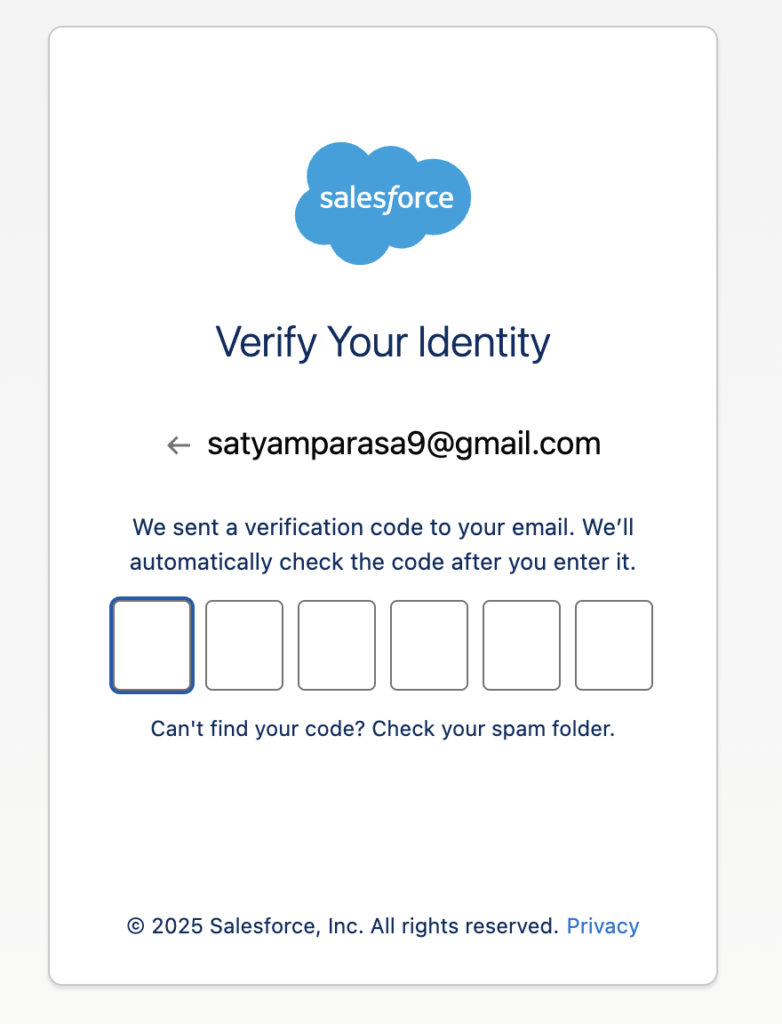
3. Once the OTP is verified, you will be redirected to the Salesforce Environment Switcher. From there, select the environment (org) you want to access.
In the screenshots below, you can see two environments listed because my email is associated with two different development orgs.
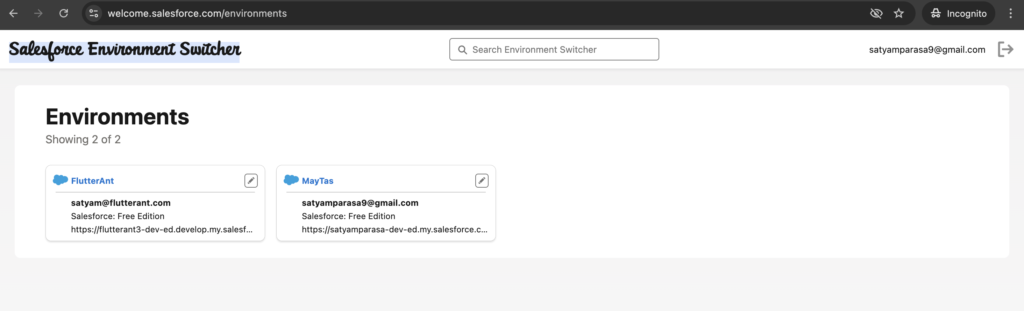
4. After selecting the environment, you will be redirected to a page where you need to enter your password. Use the same password that you set when creating the account or the one you use when logging in with your username.
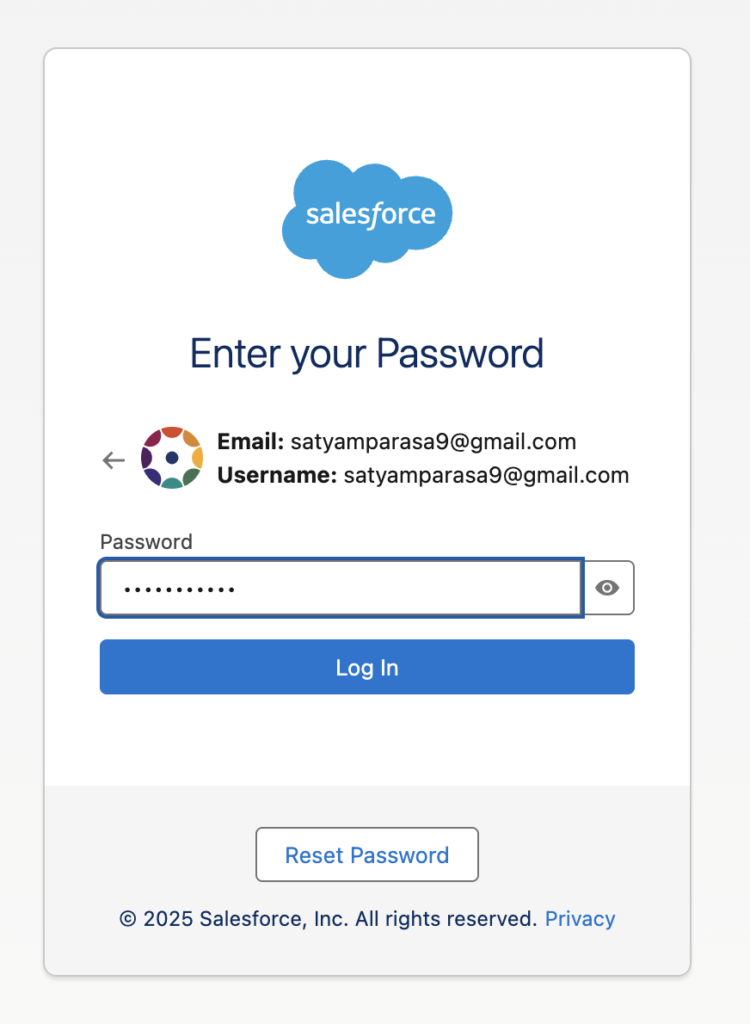
5. Once the password is correct, you will be redirected to the home page of the Salesforce application.
If you’re logging into Salesforce for the first time in a browser, Salesforce may send you an OTP for additional security verification. After the initial login, it may not prompt for OTP again unless there are security-related changes.
Important Notes About Logging in with Email:
- Sandbox environments don’t support “log in with email.” Use your username for sandbox logins.
- You must have exclusive access to your email. Shared or unverified email addresses cannot be used.
- If you can’t receive emails to your registered address, you must continue using your username.
Final Thoughts
The “Log in with Email” feature makes your Salesforce experience more user-friendly and secure. It’s a welcome change for users who:
- Manage multiple accounts
- Prefer SSO logins
- Want a simpler way to access Salesforce
Just remember — this feature is for production orgs only and depends on verified, private email access.
Have you tried logging in with your email yet? Share your thoughts or tips in the comments below!

